![[^]](top.gif)

- Create an image of a flag.
- After loading the image, expand the canvas size about 30 by 30, as the image will be expanding as it curls.

- Create a new image with the same dimensions as your flag image.
- Marquee Too > Marquee Options > Rectangular Shape and Normal Style
- Select the left half of the image.
- Gradient > Gradient Tool Options > Edit
- You may adjust the degree of the gradient.
- Click-and-drag the mouse from the left side of the selected area to the right side.
- To select the other side of the image, Select > Inverse.
- Fill it with the same gradient.
- Image > Adjust > Invert to invert the gradient on the right side of the image.
- Filter > Blur > Gaussian Blur to soften the center line.
- Save the displacement bump map in PSD.
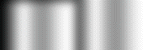
- Make the flag image current.
- Filter > Distort > Displace
- Set the horizonatal scale to 0%; vertical to 10%, experiment with it.
- OK > Choose a displacement map > Choose a bump map file you saved.

- Make the bump map file current.
- Select > All > Edit > Copy
- Make the flag image current.
- Channels > New Channel
- Edit > Paste to paste the bump map into the channel.
- Make the layer active.
- Deselect
- Magic Wand Tool and click anywhere outside of the flag.
- Select > Inverse
- Filter > Render > Lighting Effects
- Be sure to check White is High and indicate Texture Channel is #4.
- Deselect
-