 | 1) Open up your background image, (or the first image). Select All and Copy to the Clipboard. |
 | 2) Open up your foreground image, (the second image). |
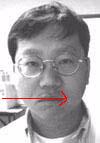 | 3) Click a Quick Mask Button and apply a Gradient in the direction you want to blend the first image to the second (from left-most to 1/4 from right, for my example) In the layer palette in the lower right, white area will show see-through, while the black area will keep its image. |
 | 4) Back to Normal Mode, and Edit > Paste Into to apply the selection into the second image. |
![[^]](top.gif)