![[^]](top.gif)
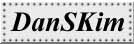
- Open the image.
- Click the Brush Tool.
- Click the Brushes pallette on the right side of the screen.
- Set the seconde smallest dot for for the thickness.
- Click Brush Option.
- In the spacing section, select around 200 % (which I did for my example). You should experiment.
- Now, draw the line around the object. Turning on Show Grid helps locating the image.
By pressing Shift key while dragging the mouse, straight line will be drawn.
- If you want brush shape other than rounded, get it from the directory in "Photoshop > Brushes". There should be at least three options to load.
If that's the case and you want to draw the skewed lines, change "Angles" option in the "Brush Option" to the desired degrees before drawing the skewed lines.
- Here you go!