![[^]](top.gif)
|
Text fused with the background
|
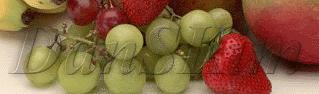
- File > New, and make it transparent. "layer 1" is out.
- Type the text.
- Copy "layer 1", "layer 1 copy" will be out.
- On "layer 1", apply Filter > Blur > Gaussian Blur.
- On "layer 1 copy", apply Filter > Stylize > Emboss. (Inner Beveled text looked too strong for me for this exercise).
- Layer Tools > Merge Visible, to make layers merge.
- Copy the text to the clipboard.
- Load the texture you want to map.
- Make a new layer above the texture layer (by Alt+NewLayer with mouse). "layer 1" is out.
- Copy the text from the clipboard to the "layer 1" of the texture image. (Or you can paste the texture over the text).
- Change Method from 'Normal' to 'Multiply'.
- You need to play with opacity to integrate the text seamlessly with the background. (As for mine, it is not in seamless condition. I need to improve this skill). Texture with the light background color will help the text standout. Dark background like my example is a poor choice :-(
- Voila!